
The VSRG mode is the rhythm game side of the app (VSRG means "Vertically Scrolling Rhythm
Game"). Instead of a keyboard you get a few lanes, the notes of a song fall down them, and you
press the right key at the moment a note reaches the bottom. The closer you are to that moment,
the more points you get.
A "beatmap" is what says which note falls down which lane and when. You make one in the VSRG composer and you play it in the VSRG player, and since a beatmap is saved like any other
song, you can send it to someone else and they can play it too.
The player
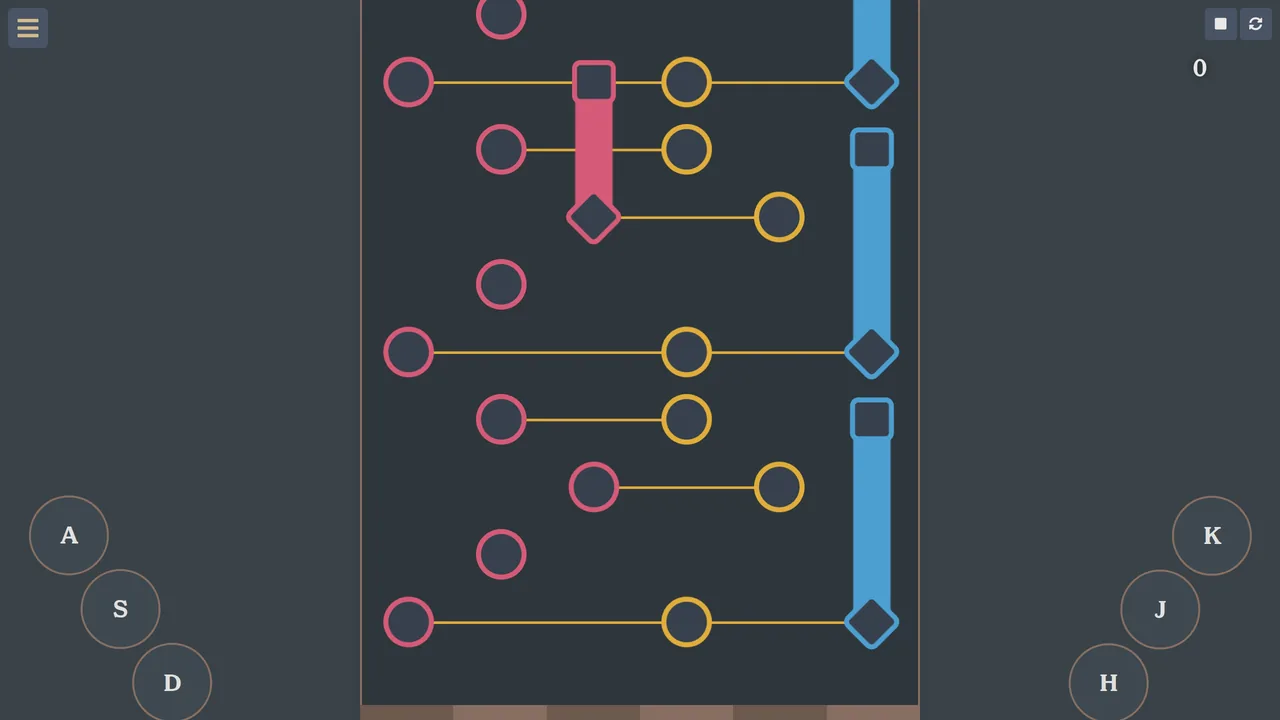
This is where a beatmap gets played. The lanes are in the middle, the keys you press are the circles in the two bottom corners, and the long bars are notes you have to keep held instead of just tapping. Your score is in the top right corner. The song plays while you press, so if you are on time it sounds like you are the one playing it.
The composer
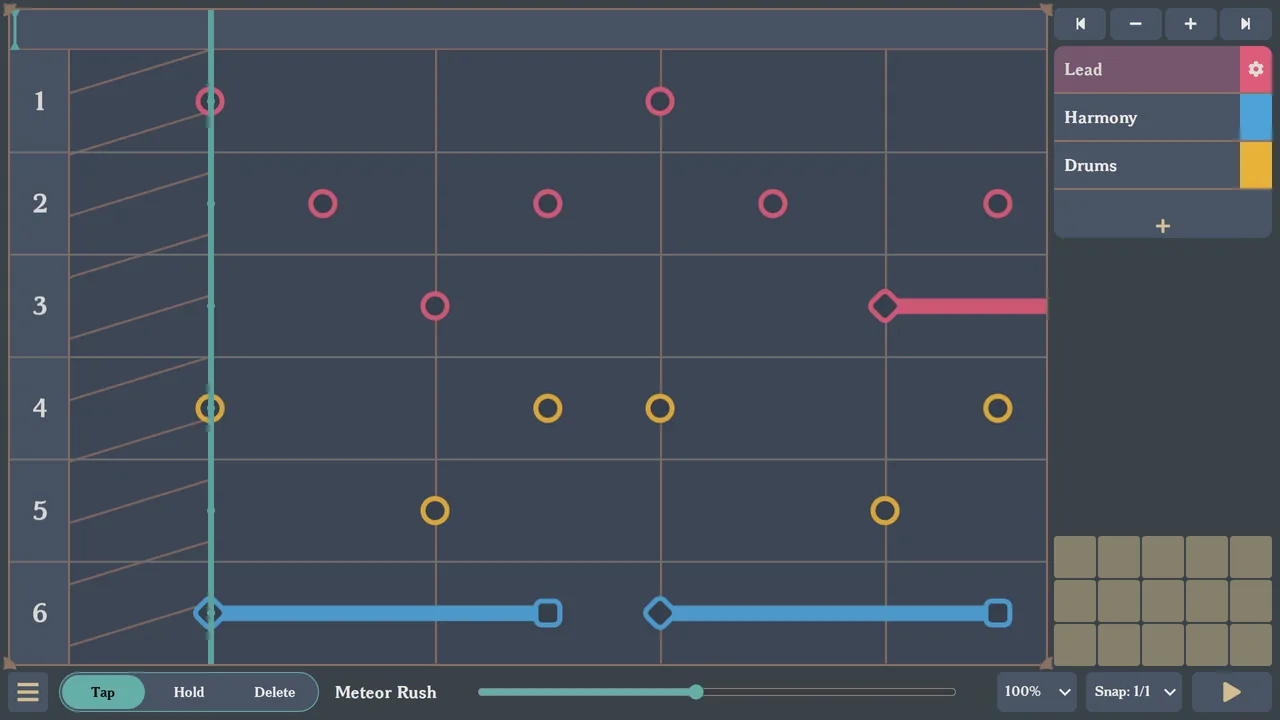
This is where a beatmap is made. Every row is one of the lanes, time goes from left to right, and you click on the grid to put a note where you want it. The circles are notes you tap once, the bars are the ones you hold. Everything each button does is written down in the VSRG composer guide, this post is about going from nothing to a beatmap you can actually play.
Choosing the song
A beatmap is always made for a song you already have in the app, so the first thing to do is open the settings menu of the VSRG composer and pick one under "Background Song". From then on that song plays while you work, and its notes are drawn in the editor as a guide, which makes it a lot easier to see where your notes should go. You can also hide or mute the single layers of it, that part is explained in the other post.
Letting the app make the first version
In that same menu there is a "Generate beatmap" button, greyed out until a song is picked. It makes a whole beatmap in one go, you say how hard you want it and which part of the song you want to play, and it places the notes for you. It's a first draft, everything it puts down can be moved, changed or deleted after.
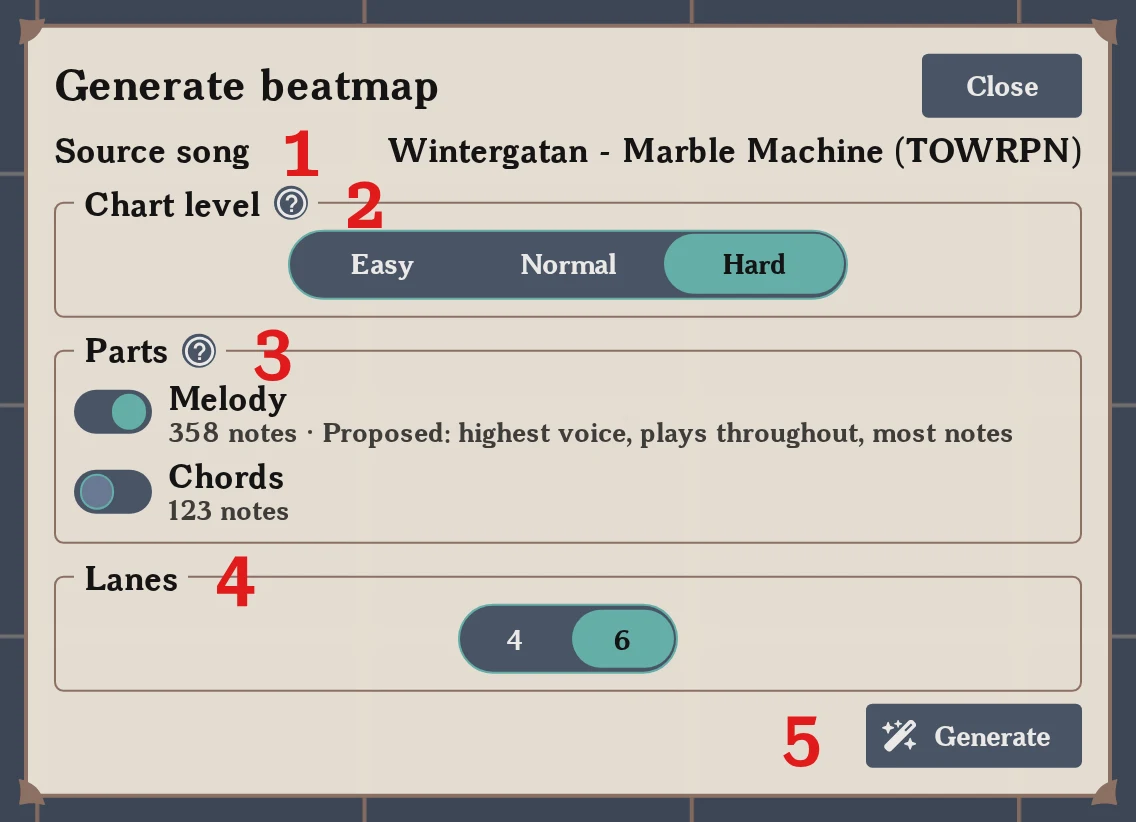
- Source song: the song the beatmap is being made from, which is the background song you picked before. If it's the wrong one, close this window and choose another
- Chart level: how hard you want the beatmap to be. The app places the notes, measures how hard what it made actually is, and keeps redoing it until the two agree. It also decides which part of the song you will be playing, so moving between Easy, Normal and Hard changes the ticks in the list below it.
- Parts: every instrument of the song, with how many notes each one has. The one the app thinks you should be playing is already ticked, and next to it there's a short reason why it was chosen, usually because it's the highest one, or the one that plays for most of the song. If you'd rather play something else, untick it and tick that instead.
- Lanes: how many keys the beatmap uses. 6 is the usual one, 4 is easier to play but leaves the notes less room to spread out, and it's better on a phone
- Generate: makes the beatmap. It always creates a new song, the one you have open is left exactly as it was, so you can never lose work you did by hand this way.
If the beatmap ends up containing every single note of an instrument, then you are the one playing that instrument, so the app turns its sound off in the song, and nothing comes out of it unless you press the keys. If it only got some of the notes, turning it off would leave holes in the music, so the app leaves it playing and your notes sound on top of it, a bit like playing along with a recording. Every note of the song is either yours to press or left playing on its own, none of them just disappear.
Reading the result
When it's finished, a "Result" box appears at the bottom of the window and the new beatmap is already open behind it, so you can close the window and listen to it straight away.
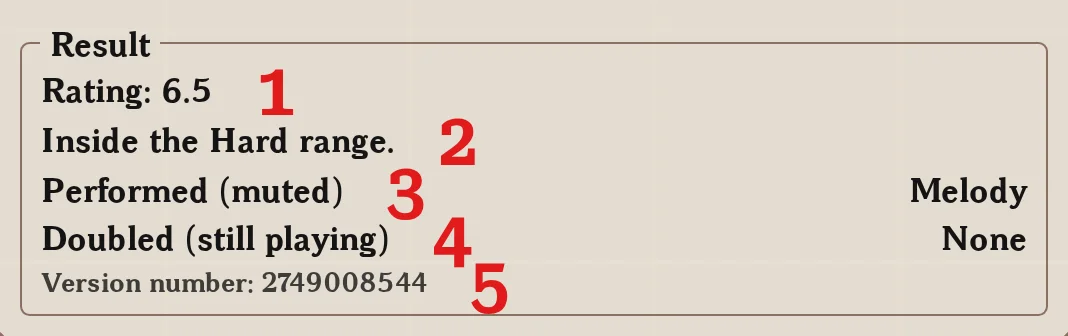
- How hard the beatmap came out, from 1 to 10. This is not the same thing as the "Difficulty" setting of the composer, that one only decides how strict the timing is for whoever plays it, this one is about the notes themselves. Generated beatmaps stop at around 8, everything above that is left for the ones made by hand
- Whether it landed in the range you asked for. If it says it couldn't, then this is the closest it managed to get, and it's usually worth trying again or choosing a different part.
- The instruments you are playing. These are muted in the song, so what you hear from them is what you press
- The instruments the beatmap plays along with. These keep sounding on their own, and your notes double them.
- The number of this exact version. The app picks a new one every time you generate, and two beatmaps made from the same song, with the same settings and the same number, come out the same.
The button you pressed now says "Roll again", and it makes another version with the same settings. It replaces the one it just made instead of adding a new one, so you won't end up with five almost identical songs in your list. Once you close the window that beatmap is yours, and generating again later will leave it alone.
Placing the notes yourself
You can also make the whole thing by hand, and even a generated beatmap usually wants a bit of fixing. The selector at the bottom left is where you choose what a click does, "Tap" adds a note you press once, "Hold" adds one you press and keep held until it ends, and "Delete" removes the note you click on. Pick the action first, then click the lane and the moment you want.
The notes you place snap onto the grid lines, and the "Snap" setting at the bottom is what decides how many of those lines there are. 1/1 gives you one per beat, 1/2 puts another one in between, and so on down to 1/16. The busier the part you are writing, the smaller you'll want them. Careful with the notes the app placed for you though, those sit exactly where the notes of the song are, which is not always on a line, so dragging one will make it jump onto the closest line and it might not be in time any more.
Each layer of the beatmap has its own instrument and its own color, and a note can carry a few sounds of that instrument, which is what you hear when it gets pressed. Generated beatmaps already have them filled in from the song, so the part you play sounds like it did in the original. When you add notes by hand you choose the sounds yourself, with the small keyboard on the bottom right.
Playing it
Once you're happy with it, go to the VSRG player, open the song menu and pick your beatmap. You can press the keys on screen or on a keyboard, and if the ones it gives you don't feel right, you can change them in the keybinds page.